
Why Is My Stream Lagging?
You are live, your game is running smoothly, but your viewers complain that your stream is stuttering, freezing, or constantly buffering. Maybe your stream looks choppy even though you have a powerful gaming PC and a fast internet connection.
So, why is your stream lagging?
The frustrating part is that there is no single answer. Stream lag can be caused by an overloaded GPU, incorrect OBS settings, encoding problems, or an unstable internet connection. In some cases, your stream may even look perfectly fine on your own screen while viewers experience buffering or stuttering.
The key is to identify what is actually causing the problem before changing settings or upgrading hardware.
In this guide, you will learn how to recognize the most common OBS stream stuttering problems, understand what causes them, and identify the first steps towards a smoother streaming experience.
Why Is My Stream Lagging? Understanding the Main Causes
A lagging stream does not automatically mean that your computer or internet connection is too weak.
When you stream with OBS Studio, several processes have to work together. Your game needs to run, OBS has to capture and render your scenes, your encoder processes the video, and your internet connection sends the finished stream to the platform.
If one of these processes cannot keep up, your stream may start to stutter.
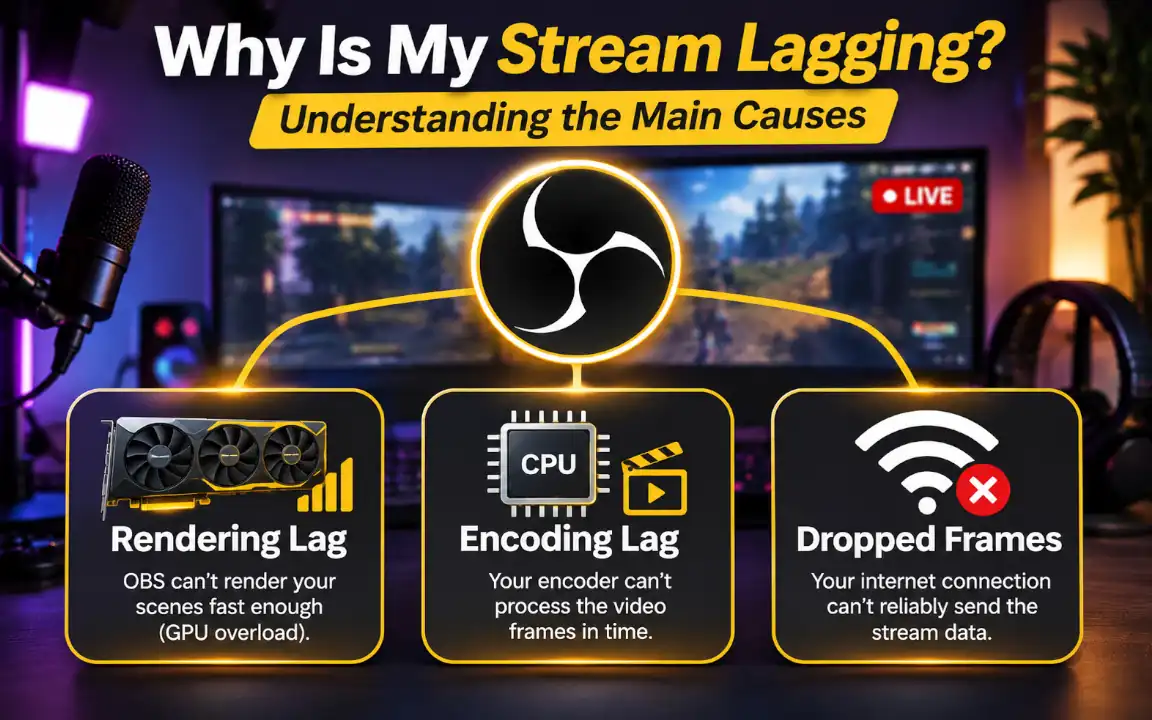
Most OBS performance problems fall into three main categories:
- Rendering lag: OBS cannot render your scenes quickly enough.
- Encoding lag: Your video encoder cannot process frames in time.
- Dropped frames: Your network connection cannot reliably deliver the stream to the streaming server.
These problems can look similar to viewers, but they have different causes. Understanding the difference is the first step towards fixing OBS stream stuttering.
1. OBS Rendering Lag – When Your GPU Is Overloaded
Rendering lag occurs when OBS Studio does not have enough available GPU resources to render your scenes in time.
This is particularly common when streaming demanding games. Your graphics card is already busy rendering the game, while OBS needs GPU resources to combine your gameplay, webcam, overlays, alerts, and other visual elements.
Even a powerful graphics card can run into problems if it is constantly operating at maximum capacity.
What causes rendering lag?
Common causes include:
- Running games without an FPS limit.
- Playing with demanding graphics settings.
- Using complex animated overlays.
- Having many browser sources active in OBS.
- Applying several filters and visual effects.
- Running multiple GPU-intensive applications at the same time.
What can you do about it?
Start by checking your GPU usage while streaming. If your graphics card is consistently close to 100% utilization, OBS may not have enough resources left to render your scenes.
A few basic adjustments can help:
- Limit your in-game FPS to leave some GPU resources available.
- Reduce demanding graphics settings if necessary.
- Temporarily disable complex overlays and unnecessary browser sources.
- Check whether additional applications are using your GPU.
You do not necessarily need a new graphics card. In many cases, the problem is how the available GPU resources are being shared between your game and OBS.
The OBS Project explains this in its official GPU and encoding performance troubleshooting guide.
2. OBS Encoding Lag – When Your Encoder Cannot Keep Up
Encoding is the process of converting your video into a compressed format that can be transmitted to Twitch, YouTube, or another streaming platform.
OBS Studio can use different encoding technologies depending on your hardware.
For example:
- NVIDIA NVENC: Hardware encoding on supported NVIDIA graphics cards.
- AMD AMF: Hardware encoding on supported AMD graphics cards.
- Intel Quick Sync: Hardware encoding on supported Intel processors.
- x264: Software encoding using your CPU.
If the selected encoder cannot process the video frames quickly enough, OBS may start skipping frames.
This is known as encoding lag or encoder overload.
Why does encoding overload happen?
The cause depends on your hardware and configuration. Some common reasons are:
- An encoder preset that is too demanding.
- Insufficient available CPU or GPU resources.
- A high output resolution or frame rate.
- Recording and streaming with demanding settings at the same time.
- Other applications competing for system resources.
What should you check?
First, check which encoder you are using in OBS Studio.
If you have a compatible graphics card, hardware encoding may help reduce the workload on your CPU. However, hardware encoding still uses system resources, and an overloaded GPU can also affect encoding performance.
You should also consider whether your current output resolution and frame rate are appropriate for your system.
For example, streaming at 1080p and 60 FPS requires more processing than streaming at 720p and 30 FPS.
If your encoder is struggling, reducing the workload can be a sensible first step.
Important: Simply switching from CPU encoding to GPU encoding does not guarantee better performance. The correct configuration depends on your hardware, the games you play, and the other tasks your system performs while streaming.
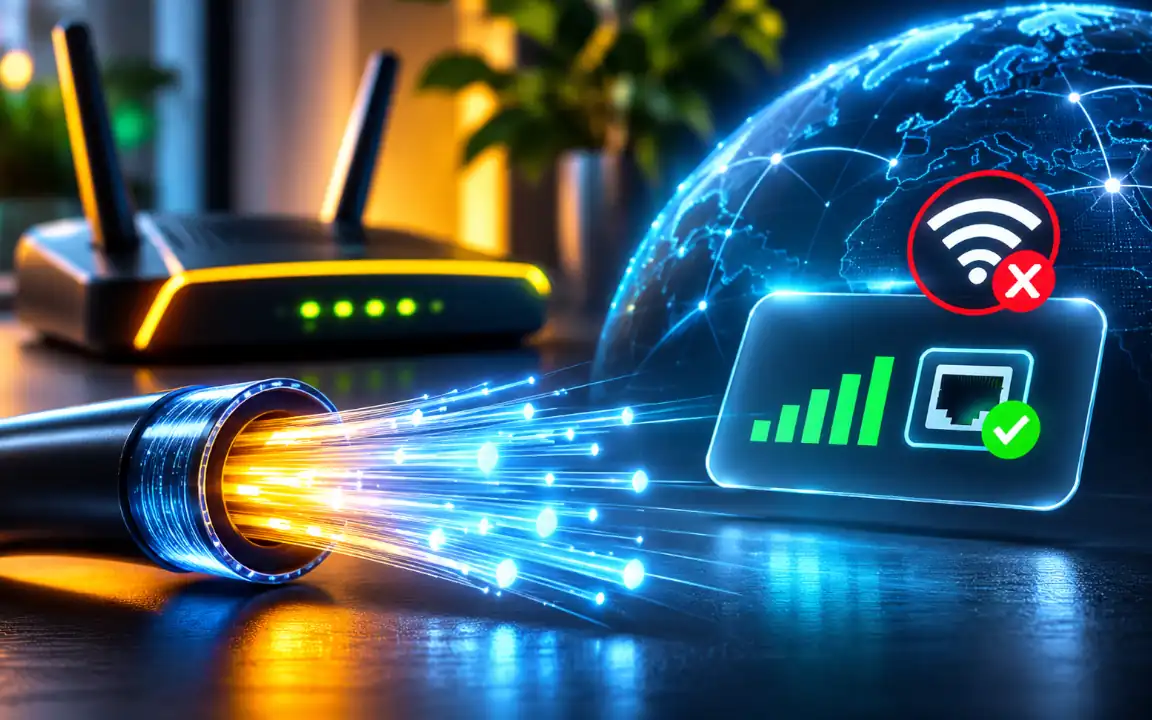
3. OBS Dropped Frames – When Your Internet Connection Is the Problem
Not every lagging stream is caused by your PC.
If OBS reports dropped frames, the problem may be your network connection.
Dropped frames occur when OBS cannot reliably send the stream data to the selected streaming server at your configured bitrate.
This can happen even when a speed test shows a high download and upload speed.
Streaming requires a stable connection, not just a good result in a short speed test.
Common causes of dropped frames
- Insufficient upload bandwidth.
- Unstable Wi-Fi connections.
- Network congestion.
- Router or network hardware problems.
- Background downloads and uploads.
- An unreliable connection to the selected streaming server.
What can you do?
Start with the connection itself.
If possible, connect your streaming PC directly to your router using an Ethernet cable. A wired connection is generally more reliable than Wi-Fi and helps eliminate wireless interference as a possible cause.
You should also make sure that your upload connection has enough spare capacity for your selected bitrate.
If other devices or applications are using your upload bandwidth, your stream may struggle to maintain a stable connection.
Another useful step is testing a different streaming server if your platform allows you to select one.
The official OBS guide explains the causes and troubleshooting steps in more detail:
OBS – Stream Connection Troubleshooting
rm.
4. Your Stream Looks Laggy to Viewers – But OBS Shows No Problems
There is another situation that many streamers overlook.
Your OBS statistics may look perfectly fine, your game runs smoothly, and you do not notice any dropped frames. Yet viewers still complain about buffering or stuttering.
In this case, the problem may not be on your computer at all.
Your viewers have different internet connections, devices, and playback conditions. A bitrate or video quality that works perfectly for one viewer may be too demanding for another.
This is especially important if your streaming platform does not provide viewers with multiple quality options.
A stream that is technically running well on your end is not automatically easy to watch for everyone.
If viewers report buffering, check your platform’s recommendations for bitrate and video settings. It may be worth testing a lower bitrate or output resolution.
You can find additional information in the official OBS Stream Buffering Troubleshooting Guide.
How to Identify Why Your Stream Is Lagging in OBS
Before changing your OBS settings, you should identify which type of performance issue you are experiencing.
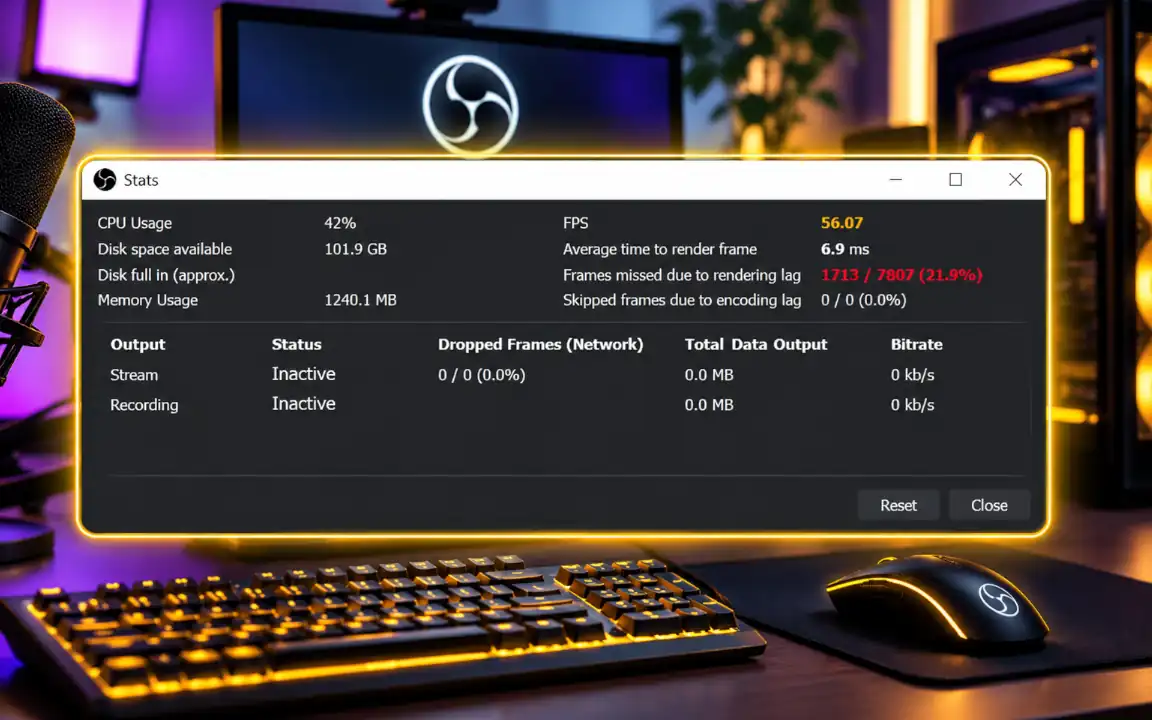
Fortunately, OBS Studio provides a built-in statistics window.
Check the OBS Stats Window
Open OBS Studio and select:
View → Stats
The statistics window displays important information about your streaming performance.
Pay particular attention to these values:
| OBS Statistic | What It Indicates |
|---|---|
| Frames Missed Due to Rendering Lag | OBS cannot render scenes in time |
| Skipped Frames Due to Encoding Lag | The encoder cannot keep up |
| Dropped Frames (Network) | Problems sending data to the streaming server |
Ideally, these counters should remain at or close to zero during a stable stream.
If one of them increases while you are live, you have a useful starting point for identifying the problem.
Use the OBS Log Analyzer
If you cannot identify the cause, your OBS log file can provide additional information.
The official OBS Log Analyzer checks your log for common configuration problems, network issues, and other potential causes of streaming problems.
To use it:
- Open OBS Studio.
- Select Help → Log Files → Upload Current Log File.
- Copy the generated URL.
- Open the OBS Log Analyzer.
- Paste your log URL and review the results.
This can help identify problems that are not immediately visible in the OBS interface.
However, a log analysis is only a starting point. Some problems depend on your hardware, game, scene setup, and the conditions under which you stream.
Common OBS Settings That Can Affect Stream Performance
There is no universal OBS configuration that works perfectly for every streamer.
Your ideal settings depend on your graphics card, processor, internet connection, streaming platform, and the games you play.
Nevertheless, a few settings deserve particular attention when troubleshooting stream stuttering.
Output Resolution and FPS
Higher resolutions and frame rates require more processing resources.
If your system struggles with 1080p at 60 FPS, testing a lower output resolution or frame rate can help determine whether your current settings are too demanding.
A stable 720p stream can provide a better viewing experience than a constantly stuttering 1080p stream.
Encoder Selection
Your encoder should match your available hardware and streaming workload.
NVIDIA, AMD, and Intel systems offer different hardware encoding options. Software encoding with x264 may also be suitable in certain configurations.
Choosing the right encoder is not just about selecting the most powerful option. It is about finding a balance between image quality, system performance, and stability.
Bitrate
Your bitrate affects both image quality and network requirements.
A bitrate that is too high for your connection can contribute to dropped frames. A bitrate that is unnecessarily low can reduce image quality, especially during fast-moving gameplay.
The correct value depends on your platform, output resolution, frame rate, and available upload bandwidth.
The important point: Changing individual OBS settings without understanding the cause can make things worse. A proper configuration should consider your entire streaming setup rather than one setting in isolation.
Why a Powerful Gaming PC Does Not Guarantee a Smooth Stream
Many streamers assume that a high-end PC should be able to handle gaming and streaming without any problems.
Unfortunately, it is not that simple.
Gaming and streaming share system resources. Your graphics card, processor, memory, and network connection all contribute to the final result.
A powerful GPU can still become overloaded when running a demanding game without an FPS limit. A fast processor cannot compensate for an unstable internet connection. And even good hardware can struggle with poorly configured OBS scenes.
This is why upgrading your PC is not always the right solution.
Before spending money on new hardware, it makes sense to understand what is actually limiting your streaming performance.
When Is Professional OBS Optimization Worth It?
If you have already checked your OBS statistics, tested your internet connection, and adjusted the most obvious settings, but your stream still stutters, the problem may require a more detailed analysis.
Sometimes several small issues combine to create one frustrating problem.
Your encoder settings, GPU workload, output resolution, OBS scenes, and network configuration all need to work together.
This is where an individual streaming setup review can make a difference.
At mystreamingpro, we help streamers improve their streaming setups with services such as:
- OBS Studio setup and optimization.
- Microphone and audio optimization.
- Streaming configuration and technical troubleshooting.
- Video quality and encoder configuration.
- Individual advice for your existing hardware.
Instead of randomly changing settings, we look at your setup and help identify where improvements are possible.
Whether you are a beginner or an experienced content creator, the goal is the same: a more reliable stream and a professional viewing experience.
Frequently Asked Questions About Stream Lag
Why is my stream lagging even though my PC is good?
A powerful PC does not guarantee a smooth stream. OBS still needs GPU and CPU resources to render scenes and encode video. Your internet connection can also cause problems independently of your hardware.
Why is OBS stream stuttering while gaming?
This can happen when your game uses too many GPU resources, leaving OBS with insufficient capacity to render its scenes. Uncapped FPS, demanding graphics settings, and complex overlays can contribute to the problem.
What is the difference between rendering lag and encoding lag?
Rendering lag occurs when OBS cannot render scenes quickly enough. Encoding lag occurs when the selected encoder cannot process video frames in time. Both can affect stream quality, but they have different causes.
Why am I getting dropped frames in OBS?
Dropped frames usually indicate an unstable connection between your computer and the streaming server or insufficient network capacity for your configured bitrate. Check your upload connection, network hardware, and selected server.
Does a better internet connection fix stream lag?
It can help if the problem is caused by network instability or insufficient upload capacity. However, it will not solve rendering lag or encoding overload caused by your PC or OBS configuration.
Should I stream at 1080p or 720p?
That depends on your hardware, available upload bandwidth, and streaming platform. If your system or connection struggles with 1080p, 720p may provide a more stable viewing experience.
Final Thoughts – Get Your Stream Running Smoothly
If you are asking yourself why your stream is lagging, the most important thing is to identify the actual cause.
Rendering lag, encoding lag, and dropped frames can all result in a poor streaming experience, but they require different solutions.
Start by checking your OBS statistics and identifying which performance counter is increasing. This gives you a much better starting point than randomly changing settings or immediately upgrading your hardware.
If you want to improve your streaming quality without spending hours troubleshooting, mystreamingpro can help you optimize your setup.
From OBS Studio and encoder configuration to microphone and audio optimization, we help you get more out of the hardware you already own.
Ready to improve your stream?
Get in touch with mystreamingpro and let’s make your streaming setup work the way it should.