
OBS vs Streamlabs – Choosing the right streaming software is one of the first important decisions every content creator has to make. Two of the most popular options are OBS Studio and Streamlabs Desktop. Both allow you to stream gameplay, create scenes, add overlays and broadcast your content to platforms like Twitch and YouTube. However, they take different approaches to live streaming.
When comparing OBS Studio vs Streamlabs, the biggest difference comes down to flexibility versus convenience. OBS Studio offers a lightweight, customizable streaming environment that can be expanded with plugins and external tools. Streamlabs Desktop, on the other hand, focuses on an all-in-one experience with many features already built into the software.
But which streaming software is actually better for your needs? Is OBS Studio the better choice for performance and customization, or does Streamlabs make more sense if you want an easier setup without dealing with additional plugins?
In this guide, we’ll compare OBS Studio and Streamlabs Desktop based on ease of use, performance, features, customization, multistreaming and pricing. By the end, you’ll have a clearer idea of which streaming software fits your experience level, hardware and streaming goals.
OBS vs Streamlabs: An Overview
What Is OBS Studio?
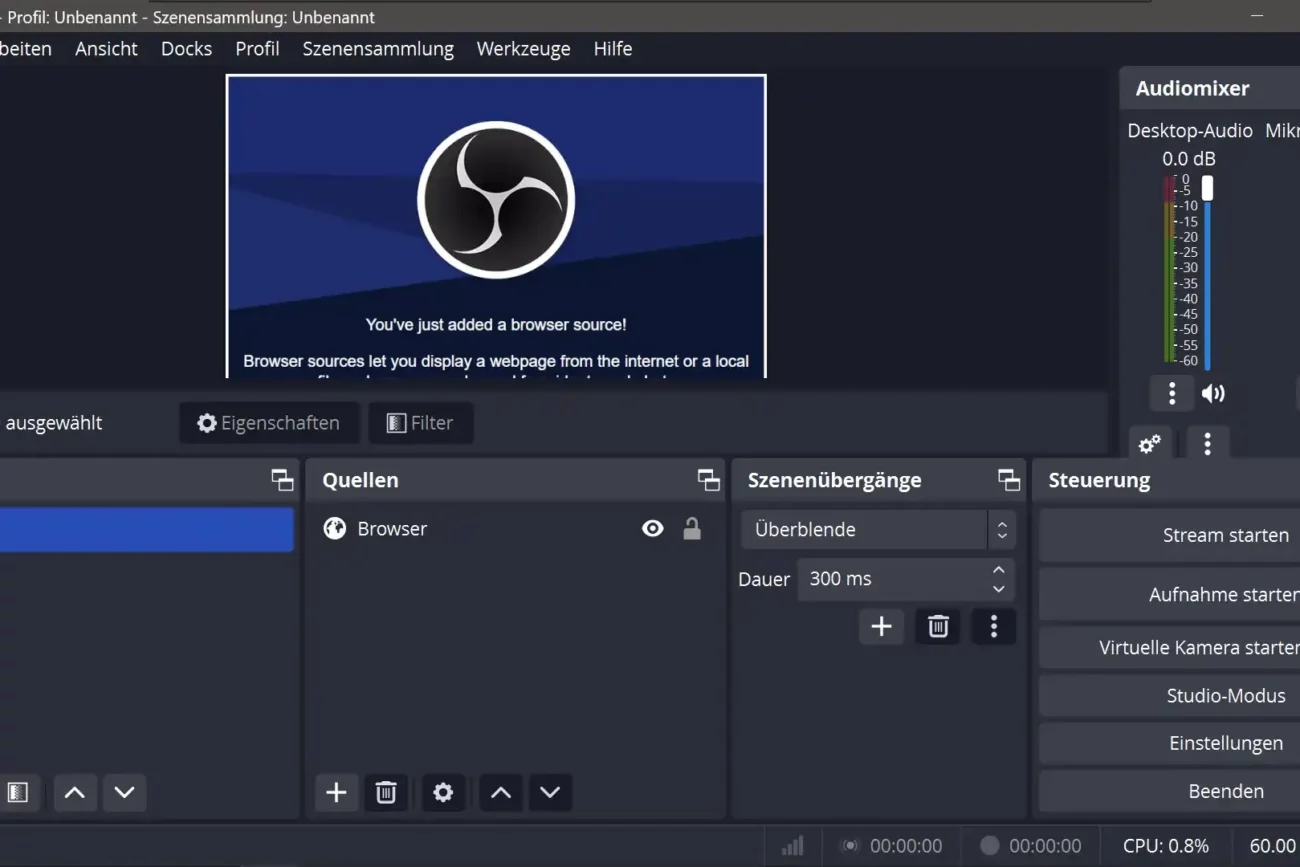
OBS Studio (Open Broadcaster Software) is a free, open-source streaming and recording application used by content creators around the world. It allows you to capture gameplay, cameras, microphones and other media sources, combine them into scenes and broadcast your content to platforms such as Twitch, YouTube and other streaming services.
One of the biggest advantages of OBS Studio is its flexibility. The software provides a clean and relatively lightweight foundation that users can customize with plugins, scripts and external tools. Instead of including every possible feature by default, OBS lets you decide which additional functions you actually need.
This makes OBS Studio particularly interesting for streamers who want full control over their streaming environment. Whether you prefer a simple setup or a highly customized production with multiple scenes, sources and audio configurations, OBS gives you the freedom to build your workflow around your individual requirements.
Because OBS Studio is open source and receives contributions from a large community, it has also developed an extensive ecosystem of plugins and guides. This makes it a popular choice among beginners who want to learn more about streaming as well as experienced creators who need greater control over their setup.
What Is Streamlabs Desktop?
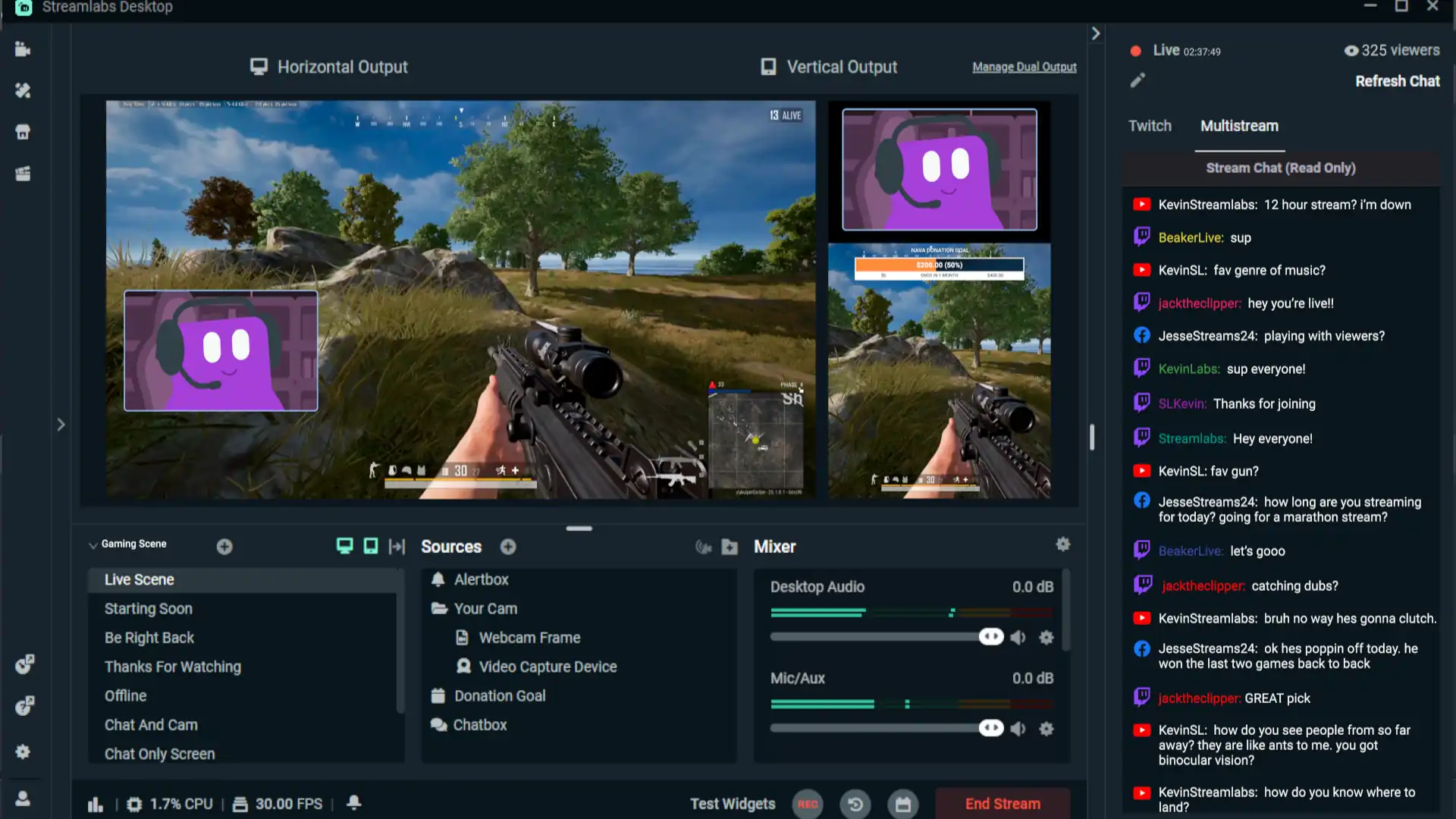
Streamlabs Desktop is a streaming and recording application designed to make live streaming more accessible through an integrated, all-in-one experience. It combines many tools that content creators commonly need, including scene management, overlays, alerts, widgets and other streaming features.
Unlike the more modular approach of OBS Studio, Streamlabs Desktop aims to provide many of these functions directly within its own software environment. This can make getting started easier, especially for beginners who prefer having essential tools available without searching for and installing additional plugins.
Another major part of the Streamlabs experience is its integration with the wider Streamlabs ecosystem. Users can access themes, design elements, alerts and additional services that help personalize their streams.
This convenience comes with a trade-off: the interface offers considerably more integrated features and options, which may feel overwhelming to users who simply want a straightforward streaming application.
Streamlabs Desktop is therefore particularly appealing to creators who value convenience, integrated functionality and a quick starting point for their streaming setup.
OBS vs Streamlabs: Key Differences
When comparing OBS Studio vs Streamlabs, the differences go beyond their appearance. Both programs offer the essential tools needed for live streaming, but they approach the streaming experience in different ways.
OBS Studio focuses on providing a flexible and lightweight foundation that users can expand according to their needs. Streamlabs Desktop takes a more integrated approach, bringing many streaming tools and additional features directly into one application.
Let’s take a closer look at the most important differences to help you decide which streaming software is right for you.
Ease of Use and User Interface
One of the biggest differences between OBS Studio and Streamlabs Desktop is the user experience.
OBS Studio has a relatively clean and functional interface. It provides the essential tools for managing scenes, sources, audio and streaming settings without adding too many extra elements. However, beginners may need some time to understand how everything works and how to build their first streaming setup.
Streamlabs Desktop is designed to make the process more accessible. Many features, such as alerts, widgets and themes, are integrated into the software. This can make getting started easier because users don’t have to search for as many external tools or plugins.
However, having more features available in one place also means a more extensive interface. Users who only need basic streaming functionality may find some of the additional menus, offers and design options unnecessary.
The difference: Streamlabs is generally more convenient for users who want an integrated starting point, while OBS Studio offers a cleaner environment for those who prefer to build their setup themselves.
Performance and System Resources
Performance is another important factor when choosing streaming software, especially if you want to stream demanding games while running additional applications in the background.
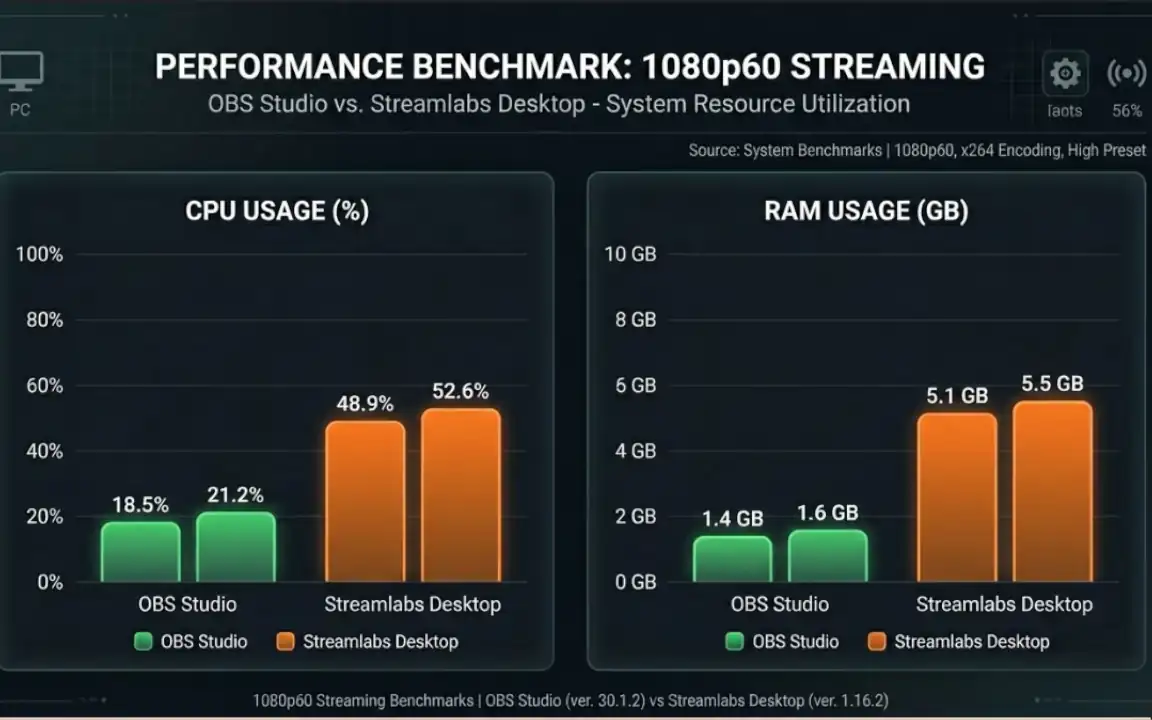
OBS Studio is known for its relatively lightweight approach. It provides the core tools for capturing, encoding and streaming without requiring users to load a large collection of additional features. This can make it an attractive option for streamers who want to keep their setup as lean as possible.
Streamlabs Desktop includes more integrated functionality, such as widgets, alerts, themes and other tools. Depending on which features are active and how the software is configured, these additional components can increase resource usage.
However, it would be misleading to say that one program is always faster than the other. Actual performance depends on your hardware, encoder, resolution, frame rate, scene complexity and the features you use.
If you have a gaming PC with limited resources, OBS Studio may be the more appealing starting point. If your system has enough performance headroom and you value integrated features, Streamlabs can still be a suitable choice.
The difference: OBS Studio is particularly attractive if a lightweight and focused streaming environment is important to you. Streamlabs offers more built-in functionality, but your actual resource usage depends on your configuration.
Features and Built-in Tools
Both programs provide the essential features needed to create professional-looking live streams. You can capture gameplay, connect a webcam, configure microphones, create scenes and manage your live broadcast.
The main difference is how these features are provided.
OBS Studio focuses on the essential tools for streaming and recording. You can create scenes, add different sources, configure audio filters and customize your production. Additional functionality can be added through plugins and external applications whenever needed.
Streamlabs Desktop combines many commonly used streaming tools within its own ecosystem. This includes features such as alerts, widgets, overlays and other options designed to help creators manage their streams.
For beginners, having these tools available directly in the application can be convenient. You can access many common features without having to research separate plugins or extensions.
The downside is that not every streamer needs all of these additional functions. If you prefer a simple streaming environment, the number of integrated options may feel unnecessary.
The difference: Streamlabs provides more integrated tools out of the box, while OBS Studio gives you a focused foundation that you can expand according to your requirements.
Plugins and Customization
Customization is one of the strongest advantages of OBS Studio.
Because OBS Studio is open-source and supports a large plugin ecosystem, users can extend its functionality in many different ways. From additional audio tools and automation to advanced scene management, plugins allow you to adapt the software to your individual workflow.
The biggest advantage is that you can decide exactly which features you want to add. If you only need a basic streaming setup, you can keep OBS Studio relatively simple. If your requirements become more advanced, you can expand it over time.
Streamlabs Desktop takes a different approach. Instead of relying on the same plugin-based workflow, many additional features are provided through the Streamlabs ecosystem. Users can access integrated tools, themes, widgets and other services directly through the platform.
This makes the experience more convenient for people who don’t want to spend time searching for individual extensions. However, it also means that customization is more closely connected to the features and services offered by Streamlabs.
The difference: OBS Studio is the better choice if you want maximum flexibility and control over your software. Streamlabs is more convenient if you prefer an integrated collection of tools rather than building your own setup with separate plugins.

Multistreaming and Platform Integration
Streaming on multiple platforms at the same time has become increasingly interesting for content creators. Instead of reaching viewers on just Twitch or YouTube, some streamers want to broadcast their content to several platforms simultaneously.
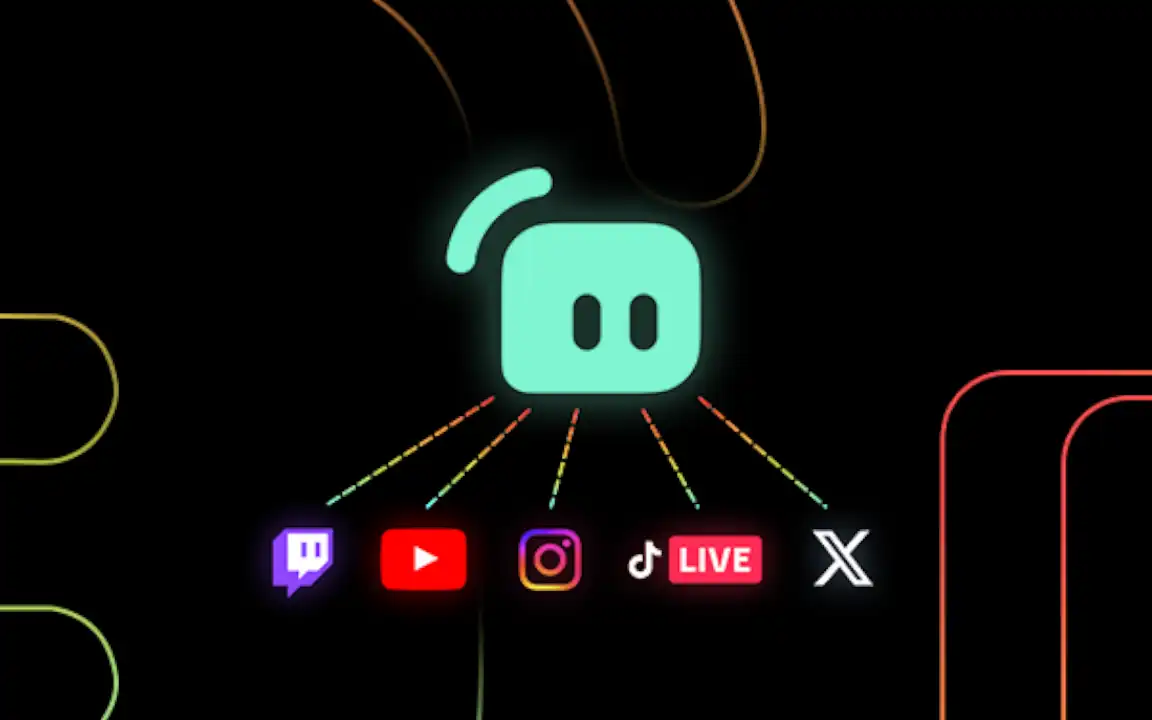
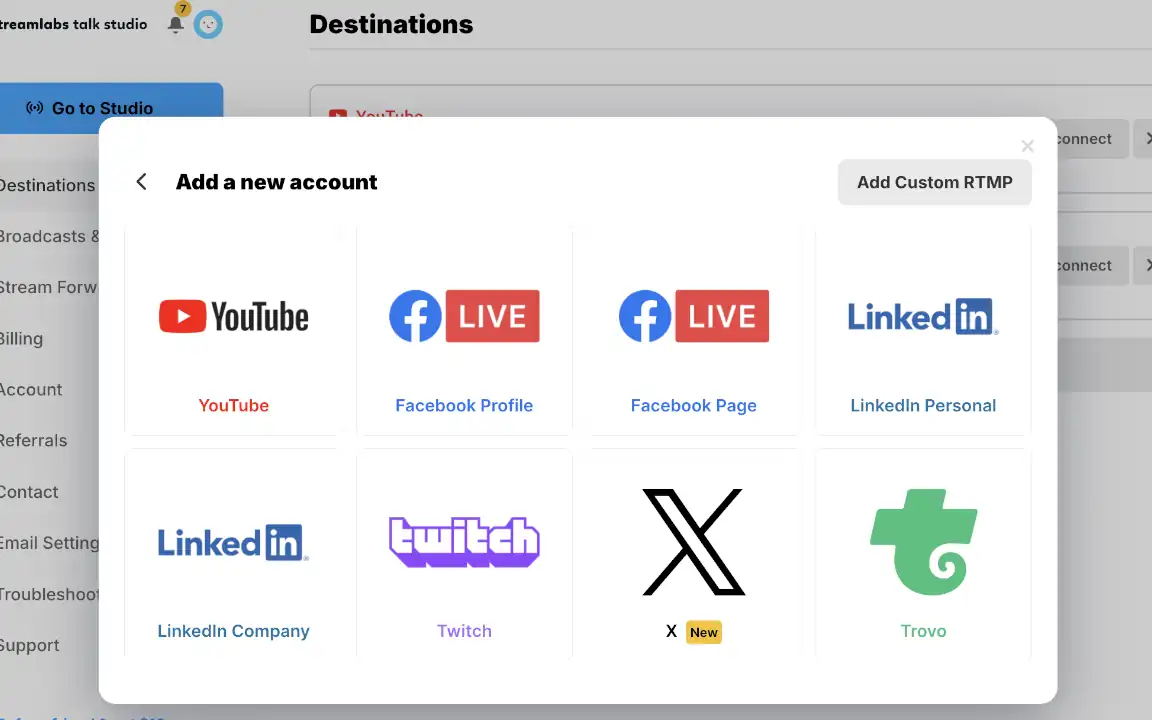
OBS Studio supports streaming to different platforms and custom streaming servers. However, simultaneous multistreaming is not a standard built-in feature of the application. Depending on your requirements, you may need an additional plugin or an external multistreaming service.
Streamlabs Desktop offers integrated multistreaming through its Streamlabs Ultra subscription. This allows creators to broadcast to multiple destinations without having to configure a separate multistreaming solution themselves.
Streamlabs also offers a free Dual Output feature, which allows you to stream to one horizontal and one vertical destination. Broadcasting to additional platforms requires Streamlabs Ultra.
For users who want to reach several communities at the same time, this can be a significant convenience.
Keep in mind that available destinations and features depend on the selected service and subscription.
The difference: Streamlabs offers a more straightforward integrated multistreaming option, while OBS Studio provides a flexible foundation that can be extended with additional tools.
Themes, Overlays and Design Options
A professional-looking stream is about more than just gameplay and a webcam. Overlays, alerts, animations and other visual elements help create a recognizable identity for your channel.
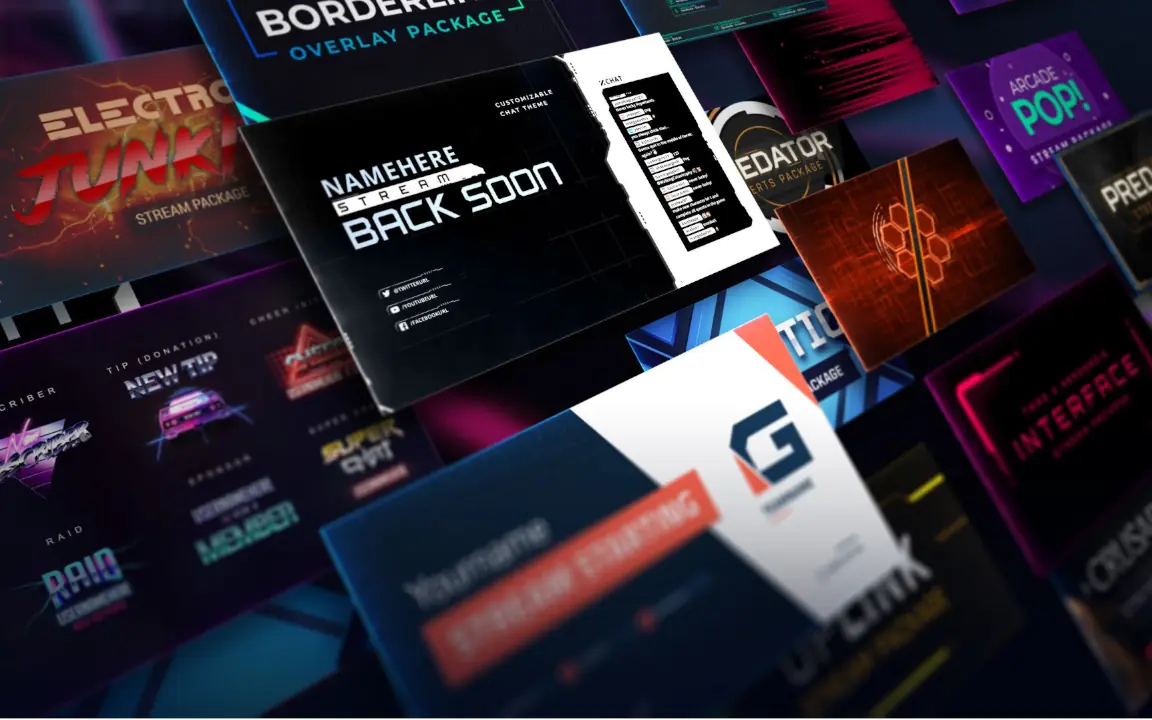
Streamlabs Desktop places a strong emphasis on these visual features. Users can access a library of themes, overlays and design elements through the Streamlabs ecosystem. This makes it easier to give a stream a polished appearance without having to create every element from scratch.
OBS Studio also supports overlays, browser sources, images, animations and custom scene layouts. However, users generally have to provide or create more of these elements themselves or use external services and tools.
This approach offers greater freedom, but it can require more time and effort.
For streamers who want a quick visual setup, Streamlabs can be convenient. If you prefer complete control over the appearance of your stream, OBS Studio offers plenty of possibilities.
The difference: Streamlabs makes ready-made design elements easier to access, while OBS Studio gives you more freedom to create and manage your own visual setup.
Pricing and Premium Features
Both OBS Studio and Streamlabs Desktop offer a free starting point, but their pricing models are different.
OBS Studio is completely free and open-source. There are no subscriptions, premium versions or built-in feature restrictions that require payment. You can use the software for streaming and recording without paying a license fee.
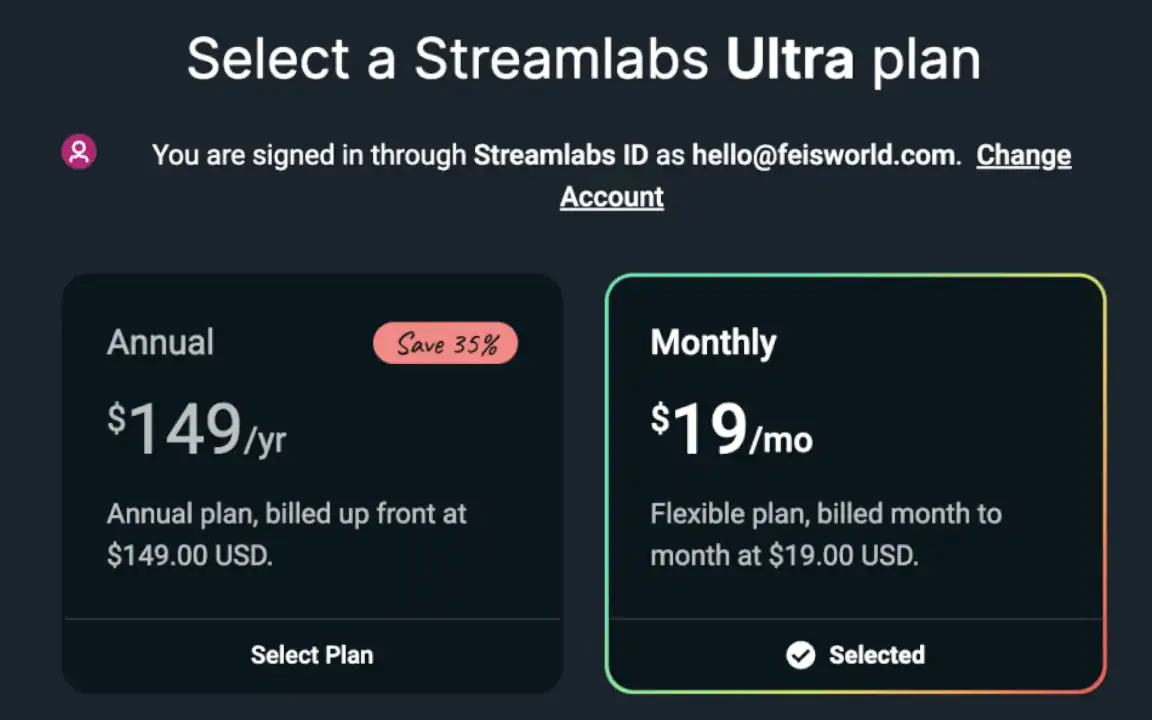
Streamlabs Desktop is also available for free. However, some additional features and services are part of the Streamlabs Ultra subscription. Depending on the current plan, these can include expanded theme and overlay libraries, multistreaming and access to additional tools.
This means that you can start using either program without paying anything. The difference becomes more relevant when you want to use additional features offered by the Streamlabs ecosystem.
If you want a streaming application without recurring software costs, OBS Studio is particularly attractive. If you value integrated premium features and are willing to pay for additional convenience, Streamlabs may be worth considering.
The difference: OBS Studio remains completely free, while Streamlabs offers a free version alongside optional paid services and premium features.
OBS Studio: Pros and Cons
OBS Studio has become one of the most popular streaming applications for a reason. Its open-source approach, flexible plugin system and relatively lightweight design make it an attractive choice for content creators who want control over their streaming environment.
However, OBS Studio is not necessarily the perfect solution for everyone. Its flexibility also means that users may need to spend more time configuring their setup and finding additional tools to achieve the functionality they want.
Let’s take a look at the main advantages and disadvantages of OBS Studio.
Advantages of OBS Studio
- Completely free: OBS Studio is free to download and use, with no subscription fees or premium version required.
- Open-source software: Its open-source development allows a large community to contribute to the software and its ecosystem.
- Lightweight and focused: OBS provides the essential tools for streaming and recording without requiring users to use a large collection of integrated extras.
- Extensive plugin support: You can expand OBS with plugins, scripts and external tools to add functionality whenever you need it.
- Highly customizable: From scenes and sources to audio filters and advanced workflows, you have considerable control over your streaming environment.
- No unnecessary extras: You can keep your setup simple and only add the features that are relevant to your needs.
- Broad community support: Tutorials, guides, forums and community-developed extensions make it easier to find help and improve your setup.
Disadvantages of OBS Studio
- More initial setup required: Beginners may need some time to understand the interface and configure their first streaming setup.
- Fewer integrated extras: Features such as alerts, themes and widgets often require additional plugins or external services.
- Plugins require manual management: Users need to find, install and maintain additional extensions themselves.
- Multistreaming needs additional tools: Broadcasting to multiple platforms simultaneously is not included as a standard built-in feature.
- Less beginner-oriented: The software focuses on flexibility and control rather than guiding users through an all-in-one setup process.
Overall, OBS Studio is an excellent choice for streamers who value flexibility, control and a clean software environment. But if you prefer having more features integrated directly into one application, Streamlabs Desktop may be worth considering.
Streamlabs Desktop: Pros and Cons
Streamlabs Desktop is designed to make live streaming more accessible by combining many commonly used streaming tools in one application. Instead of building your setup from scratch, you can access features such as alerts, widgets, themes and other integrations directly through the Streamlabs ecosystem.
This all-in-one approach can be particularly appealing to beginners who want to start streaming without spending too much time searching for additional software or configuring individual plugins.
However, having so many features integrated into one environment also comes with certain disadvantages. The interface can feel crowded, some features require a paid subscription, and users who prefer a clean and minimal streaming application may find Streamlabs more extensive than necessary.
Let’s take a closer look at its main advantages and disadvantages.
Advantages of Streamlabs
- Beginner-friendly experience: Streamlabs makes it easier for new streamers to get started without having to configure every feature individually.
- All-in-one functionality: Many commonly used streaming tools, such as alerts, widgets and overlays, are available through the Streamlabs ecosystem.
- Integrated themes and overlays: Users can access ready-made designs and visual elements to personalize their streams.
- Convenient multistreaming: Streamlabs Ultra offers integrated multistreaming, allowing creators to broadcast to multiple platforms through one solution.
- Less manual plugin setup: Many additional features are provided directly through Streamlabs rather than requiring separate OBS plugins.
- Connected ecosystem: Streamlabs offers additional services and tools that can be used alongside its desktop application.
- Quick starting point: Users who want a ready-made streaming environment may find it easier to get started with Streamlabs than building everything themselves.
Disadvantages of Streamlabs
- More crowded interface: The large number of integrated features, menus, offers and additional services can make the application feel overwhelming.
- Potentially higher resource usage: Depending on the active features and configuration, the additional integrated components may consume more system resources than a minimal OBS setup.
- Paid premium features: Some features, themes and services require a Streamlabs Ultra subscription.
- Less flexibility for certain workflows: Users who want to build a highly customized streaming environment may prefer the more open and modular approach of OBS Studio.
- More integrated extras than some users need: Not every streamer needs built-in shops, theme libraries, widgets or additional services.
- Dependence on the Streamlabs ecosystem: Some of the convenience comes from using Streamlabs’ own services and integrations rather than choosing completely independent tools.
Overall, Streamlabs Desktop is a convenient option for creators who want many streaming features available in one place. Its integrated approach can save time, especially when starting out. However, streamers who prefer a clean interface, maximum flexibility and control over every part of their setup may eventually find OBS Studio more appealing.

Can You Switch from Streamlabs to OBS Studio?
Yes, switching from Streamlabs Desktop to OBS Studio is absolutely possible. In fact, many streamers start with Streamlabs because of its convenient all-in-one approach and later move to OBS Studio when they want more control over their streaming environment.
As your channel grows, your requirements may change. You might want a cleaner interface, more flexibility, fewer integrated extras or a streaming setup that you can customize exactly to your needs.
OBS Studio provides a different approach. Instead of relying on a large collection of built-in features, you can start with the essentials and add plugins or external tools whenever you need them.
However, switching software does require some preparation. Your scenes, sources, audio settings, overlays and other elements may need to be recreated or adjusted. Some settings and assets can be transferred or reused, but you should not expect every part of your existing Streamlabs setup to work automatically in OBS Studio.
The good news is that you don’t have to change everything overnight. You can build your OBS setup gradually, test your scenes and audio, and make the switch once everything is working as expected.
In short: If you started with Streamlabs but now want a cleaner, more flexible streaming environment, OBS Studio can be a worthwhile next step.
Frequently Asked Questions
Still unsure whether OBS Studio or Streamlabs is the right streaming software for you? Here are answers to some of the most common questions about both applications.
Is OBS Studio Better Than Streamlabs?
OBS Studio is often the better choice for streamers who value flexibility, customization and a clean streaming environment. Streamlabs Desktop is more convenient for users who prefer an all-in-one solution with many integrated features. The better option ultimately depends on your experience level and individual requirements.
Is Streamlabs Easier to Use Than OBS?
For many beginners, Streamlabs Desktop is easier to get started with because it integrates features such as alerts, widgets and themes. OBS Studio requires more initial configuration, but offers greater flexibility once you become familiar with its interface.
Does Streamlabs Use More CPU Than OBS?
Streamlabs Desktop can use more system resources depending on its active features and configuration. OBS Studio provides a more lightweight foundation, but actual CPU and GPU usage depends on your hardware, encoder, scenes and streaming settings. Neither application is guaranteed to perform better on every computer.
Is OBS Studio Completely Free?
Yes. OBS Studio is free and open-source software. There are no subscription fees or premium versions required to use its streaming and recording features. Additional plugins and external services may have their own costs, but the OBS Studio application itself is completely free.
Can You Use Streamlabs and OBS Together?
Yes, you can use certain Streamlabs services and tools alongside OBS Studio. For example, Streamlabs offers integrations and tools that can be used independently of Streamlabs Desktop. However, running two complete streaming applications simultaneously is usually unnecessary and may consume additional system resources.
Can You Multistream with OBS Studio?
OBS Studio does not include native simultaneous multistreaming as a standard feature. However, you can broadcast to multiple platforms using compatible plugins or an external multistreaming service. This gives you flexibility, but may require additional configuration compared to Streamlabs’ integrated multistreaming option.
Final Verdict: OBS Studio vs Streamlabs
After comparing OBS Studio and Streamlabs Desktop, one thing becomes clear: both applications are capable streaming solutions, but they are designed with different priorities in mind.
Streamlabs Desktop is a convenient choice for beginners who want an all-in-one solution with integrated alerts, widgets, themes and multistreaming options. It can make getting started easier and brings many commonly used tools together in one place.
OBS Studio is the better choice for streamers who value flexibility, performance and control. Its clean interface, open-source foundation and extensive plugin ecosystem allow you to build a streaming setup around your own requirements. You decide which features you need instead of having to use everything that comes with the software.
In our opinion, OBS Studio is particularly appealing if you want to develop your streaming setup over time. You can start with the essentials and add new features whenever your needs change. This keeps your environment organized and gives you more control over your entire production.
That doesn’t mean Streamlabs is a bad choice. If convenience and integrated features are more important to you than customization, it can still be the right solution.
Our final recommendation: Choose Streamlabs Desktop if you want an accessible all-in-one experience. Choose OBS Studio if you want a flexible, customizable and focused streaming environment.
And remember: the software is only one part of a successful stream. Proper audio settings, optimized scenes, a well-configured microphone and reliable streaming settings can make just as much difference to the quality of your content.
If you want to get more out of your OBS Studio setup but aren’t sure where to start, mystreamingpro can help you optimize your streaming software, microphone and audio configuration.
Need Help Setting Up Your Streaming Software?
Whether you choose OBS Studio or Streamlabs Desktop, you don’t have to figure everything out on your own.
At mystreamingpro, I help you get your streaming setup up and running professionally – from software configuration and scene setup to microphone optimization and crystal-clear audio.
And if you’re new to streaming, don’t let OBS Studio intimidate you. You don’t need to be an expert or spend hours figuring out complicated settings. I’ll guide you through the process and take care of the technical details, so you can focus on what really matters: creating great content.
No matter which software you choose, I’ll help you get the most out of your streaming setup.
Ready to take your stream to the next level? Let’s get started!