
GTA 6 Streaming Settings: Best OBS Settings for 30 FPS
Grand Theft Auto VI has arrived, and streamers are already looking for ways to get the best possible image quality when broadcasting their gameplay. But there is one important detail that makes GTA 6 different from many other modern games: its 30 FPS target on current-generation consoles.
Choosing the right GTA 6 streaming settings is essential if you want to deliver a sharp and stable stream.
Most OBS Studio users are accustomed to streaming at 60 FPS. However, when the actual gameplay runs at 30 FPS, broadcasting at 60 FPS does not necessarily provide any additional visual information. Instead, it can introduce unnecessary frame processing without improving the smoothness of the original gameplay.
By adjusting your streaming settings to match the game’s frame rate, you can potentially achieve a sharper image, better compression efficiency, and more consistent streaming quality.
In this guide, we’ll explain the best GTA 6 streaming settings, how to configure OBS Studio, which bitrate to use, and why 30 FPS could actually be the better choice for your GTA 6 streams.
Why GTA 6 Streaming Settings Are Different
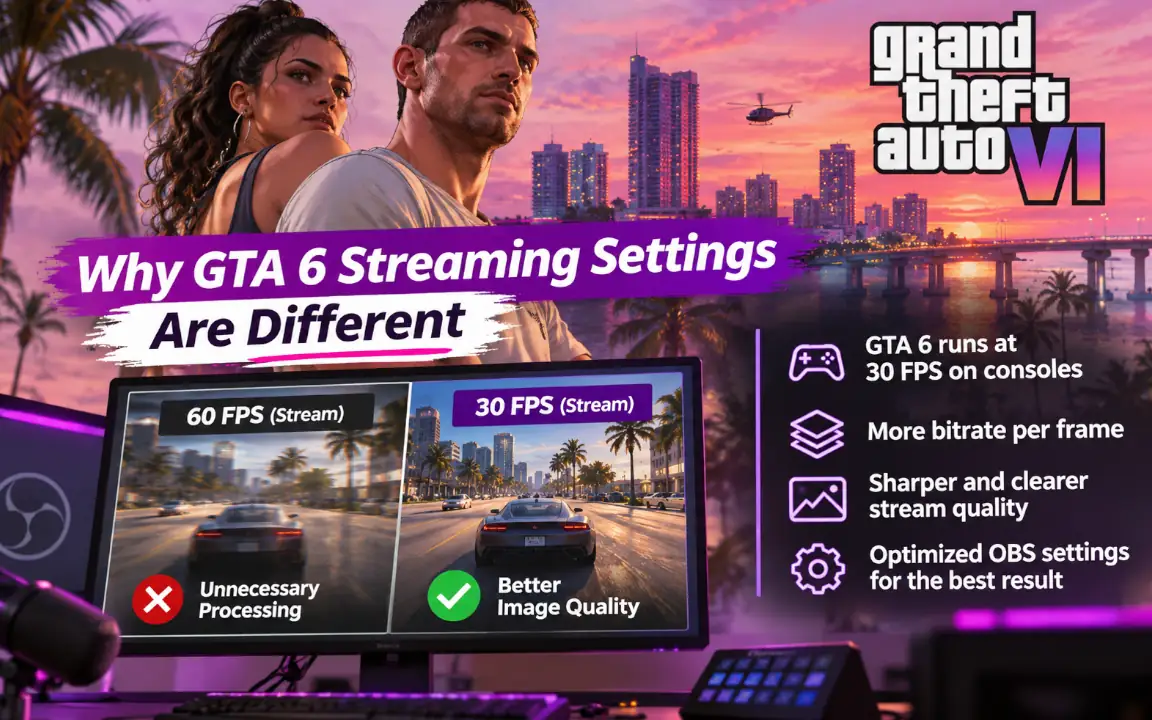
GTA 6 introduces a different situation for console streamers. Unlike competitive shooters that often run at 60 FPS or higher, GTA 6 targets 30 FPS on current-generation consoles.
This has a direct impact on how you should configure your streaming software.
When your game produces 30 unique frames per second, your streaming encoder only receives 30 new gameplay frames every second. Setting OBS Studio to output 60 FPS does not automatically create additional gameplay information.
Depending on your capture and encoding pipeline, OBS may simply repeat frames to reach the selected output frame rate.
For streamers, this raises an important question:
Why spend additional encoding resources processing 60 output frames when the original gameplay only provides 30 unique frames?
A properly configured 30 FPS stream can be a much more efficient solution.
The objective is not to achieve the highest possible FPS number. It is to deliver the best possible image quality to your viewers.
30 FPS vs. 60 FPS – How Bitrate Affects Stream Quality
Bitrate is one of the most important factors when it comes to streaming quality.
It determines how much data your encoder can use to represent your video. The available bitrate is particularly important when streaming games with detailed environments, fast camera movements, and complex visual effects.
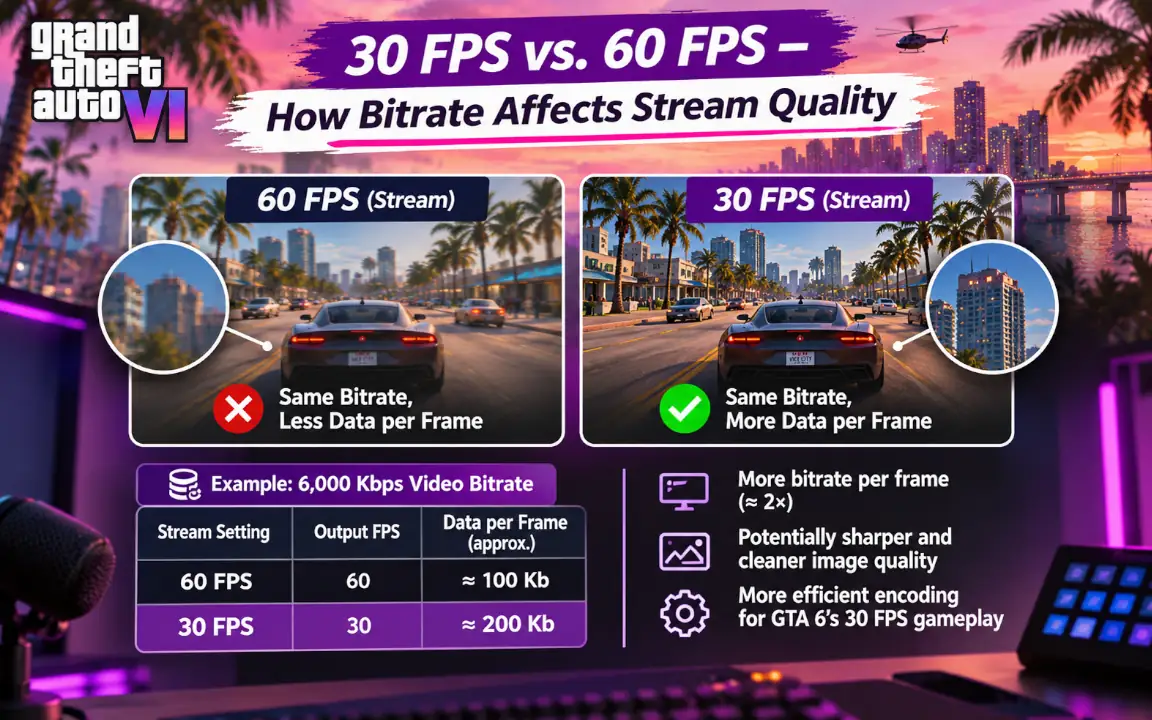
Let’s look at a simplified example using a fixed video bitrate of 6,000 Kbps.
Streaming at 60 FPS:
-
Available bitrate: 6,000 Kbps
-
Output frame rate: 60 FPS
-
Average data budget: approximately 100 Kb per output frame
Streaming at 30 FPS:
-
Available bitrate: 6,000 Kbps
-
Output frame rate: 30 FPS
-
Average data budget: approximately 200 Kb per output frame
These are simplified averages, not fixed allocations made by the encoder. Modern video codecs use inter-frame compression and dynamically distribute data depending on movement and image complexity.
Nevertheless, the principle is important.
With fewer unique frames to encode, the encoder has more opportunities to preserve visual detail in each frame.
This can be particularly beneficial in GTA 6, where detailed city environments, vegetation, traffic, reflections, lighting effects, and driving sequences can challenge video compression.
At the same bitrate, 1080p at 30 FPS can therefore look noticeably cleaner than 1080p at 60 FPS when the original gameplay itself only runs at 30 FPS.
Best OBS Settings for GTA 6
If you’re using OBS Studio to stream GTA 6 from a PlayStation or Xbox, you should start by matching your streaming output to the game’s actual frame rate.
The following settings provide a good starting point for a high-quality 1080p stream.
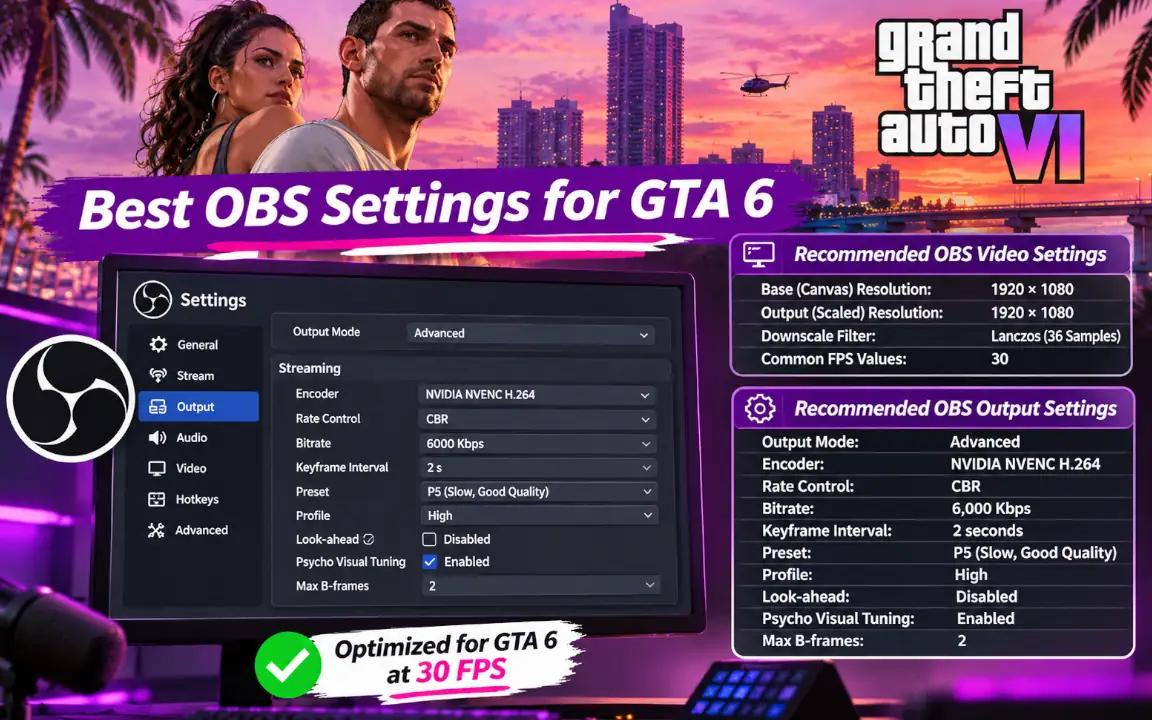
These GTA 6 streaming settings provide a reliable starting point for optimizing your stream quality
Recommended OBS Video Settings
Open OBS Studio and navigate to Settings → Video.
Use the following configuration:
-
Base (Canvas) Resolution: 1920×1080
-
Output (Scaled) Resolution: 1920×1080
-
Downscale Filter: Lanczos (36 Samples)
-
Common FPS Values: 30
If your system or streaming platform cannot maintain a consistent 1080p stream at your selected bitrate, consider reducing the output resolution to 1280×720.
The important thing is to find the right balance between resolution, frame rate, and available bandwidth.
For most GTA 6 console streamers, 1080p at 30 FPS is an excellent starting point.
Best OBS Output Settings
Your output settings determine how OBS Studio compresses and transmits your gameplay.
For systems equipped with an NVIDIA graphics card, NVENC is an excellent encoding option.
Recommended starting configuration:
-
Output Mode: Advanced
-
Encoder: NVIDIA NVENC H.264
-
Rate Control: CBR
-
Bitrate: 6,000 Kbps (where supported)
-
Keyframe Interval: 2 seconds
-
Preset: P5 (Slow, Good Quality)
-
Profile: High
-
Look-ahead: Disabled
-
Psycho Visual Tuning: Enabled
-
Max B-frames: 2
These settings provide a solid starting point for many streaming configurations.
If you’re using an AMD graphics card or Intel Quick Sync, your encoder options will differ. The same general principles apply, but individual settings should be adjusted to match your hardware.
Also remember that your streaming platform determines which bitrate and encoding configurations are supported.
Best GTA 6 Streaming Resolution and Bitrate
Choosing the right resolution is just as important as selecting the correct frame rate.
Many players capture GTA 6 in 4K because their console and television support it. However, broadcasting in 4K is not automatically the best option.
A higher resolution requires more data to preserve fine details. If your available bitrate is limited, the resulting stream can look heavily compressed.
For most streamers, a properly optimized 1080p stream will provide a better balance between image quality and bandwidth.
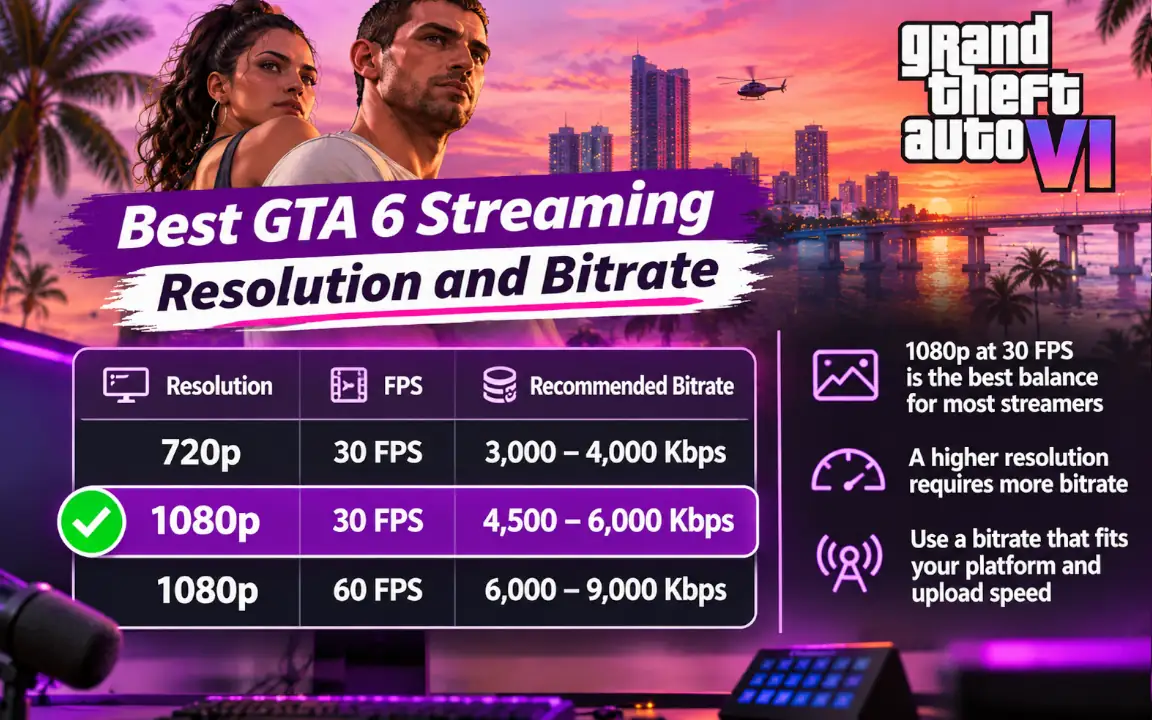
Here are some recommended starting configurations:
-
720p at 30 FPS: 3,000–4,000 Kbps
-
1080p at 30 FPS: 4,500–6,000 Kbps
-
1080p at 60 FPS: 6,000–9,000 Kbps
These values are general recommendations rather than universal platform requirements.
Twitch, YouTube, and other streaming platforms have different bitrate limits and recommendations. Always check the current requirements of your chosen platform.
Should You Stream GTA 6 in 1080p or 1440p?
For most console streamers, 1080p at 30 FPS is the configuration I would recommend testing first.
It offers several advantages:
-
Lower bandwidth requirements.
-
More efficient encoding at a fixed bitrate.
-
Good compatibility with common streaming platforms.
-
Less demanding capture and scaling requirements.
1440p can also be an option if your capture device, encoder, upload connection, and streaming platform support it.
However, increasing the resolution without increasing the available bitrate can actually make compression artifacts more noticeable.
The goal should always be to achieve a clean and consistent image rather than simply selecting the highest available resolution.
Common GTA 6 Streaming Mistakes
Even with powerful hardware and a fast internet connection, incorrect OBS settings can significantly reduce your streaming quality.
Here are some common mistakes you should avoid.
1. Automatically Choosing 60 FPS
Many streamers select 60 FPS because it has become the standard for modern streaming.
However, when your gameplay only produces 30 unique frames per second, a 60 FPS output does not provide additional gameplay detail.
Test 30 FPS and compare the actual image quality.
2. Using Too Little Bitrate for Your Resolution
Streaming at 1080p with insufficient bitrate can result in blurry textures, compression artifacts, and a loss of detail.
Instead of automatically increasing your resolution, make sure your bitrate is appropriate for your selected output settings.
3. Ignoring Encoder Settings
Your encoder has a significant impact on the final image quality.
Incorrect presets, unnecessary GPU load, or unsuitable rate control settings can negatively affect your stream.
Make sure your encoder is configured correctly for your hardware and platform.
4. Confusing HDMI Refresh Rate with Game FPS
A 60 Hz HDMI signal does not automatically mean that your game is running at 60 FPS.
Understanding this difference is particularly important when configuring console capture cards.
5. Ignoring Upload Stability
A fast download connection does not guarantee a stable streaming connection.
Your upload speed, network stability, and available bandwidth are all important.
Ideally, your upload capacity should comfortably exceed your total streaming bitrate to leave enough room for network fluctuations and other traffic.
Frequently Asked Questions About GTA 6 Streaming
Can You Stream GTA 6 at 60 FPS?
You can configure OBS Studio to output 60 FPS, but if your console gameplay only provides 30 unique frames per second, this does not create additional gameplay information. For most console-based GTA 6 streams, 30 FPS is worth testing first.
Is 30 FPS Better for Streaming GTA 6?
It can be. At the same bitrate, 30 FPS can provide more encoding bandwidth per unique frame, potentially resulting in sharper image quality and fewer compression artifacts. However, the result depends on the encoder, source quality, and streaming platform.
What Is the Best Bitrate for GTA 6 Streaming?
For a 1080p 30 FPS stream, 4,500–6,000 Kbps is a sensible starting range where supported. The ideal bitrate depends on your streaming platform, encoder, and upload connection.
What Are the Best OBS Settings for GTA 6?
A good starting point is 1920×1080 resolution, 30 FPS, CBR rate control, NVIDIA NVENC H.264, a two-second keyframe interval, and a bitrate appropriate for your streaming platform.
Do I Need a Capture Card to Stream GTA 6?
If you’re streaming directly from a console to a PC using OBS Studio, a capture card is generally the easiest solution. However, you can also use supported console streaming applications or remote-play solutions depending on your setup.
Final Thoughts – Get the Best Possible GTA 6 Stream Quality
GTA 6 creates an interesting opportunity for streamers to rethink their usual OBS Studio configurations.
Instead of automatically choosing 60 FPS, matching your streaming output to the game’s actual frame rate can help you make better use of your available bitrate.
The combination of 1080p resolution, 30 FPS output, a properly configured encoder, and a suitable bitrate can deliver excellent streaming quality without unnecessarily increasing your system or network requirements.
But there is no universal configuration that works perfectly for everyone.
Your capture card, graphics card, encoder, upload speed, and streaming platform all play an important role.
With the right GTA 6 streaming settings, you can get the best possible image quality from your setup
A professional streaming setup isn’t about using the highest possible numbers. It’s about getting the best possible quality from the hardware and bandwidth you actually have.
Ready to Optimize Your GTA 6 Streaming Setup?
GTA 6 is attracting a huge number of streamers, and standing out requires more than simply pressing the Start Streaming button.
Poor image quality, incorrect encoder settings, audio problems, and improperly configured OBS scenes can make even the best gameplay look unprofessional.
At mystreamingpro, I help streamers get the most out of their equipment and build a professional streaming setup.
My services include:
-
Personalized streaming bitrate and encoder settings.
-
Capture card and console streaming configuration.
-
Complete streaming setup improvements.
Whether you’re just starting with GTA 6 or looking to improve an existing streaming setup, I can help you achieve better results.
Build smart. Stream stable. Stand out.